Add Wheel$ as a Custom Token in your Trust Wallet
This is a short tutorial for how to add Wheel$ as a Custom Token inside your Trust Wallet app.
Wheel$ token is stored on the Polygon blockchain, so if you´re having trouble viewing your Wheel$, it might be because your current Wallet app type does not support showing tokens that sit Polygon.
On your 📲🛡️ Trust Wallet app:
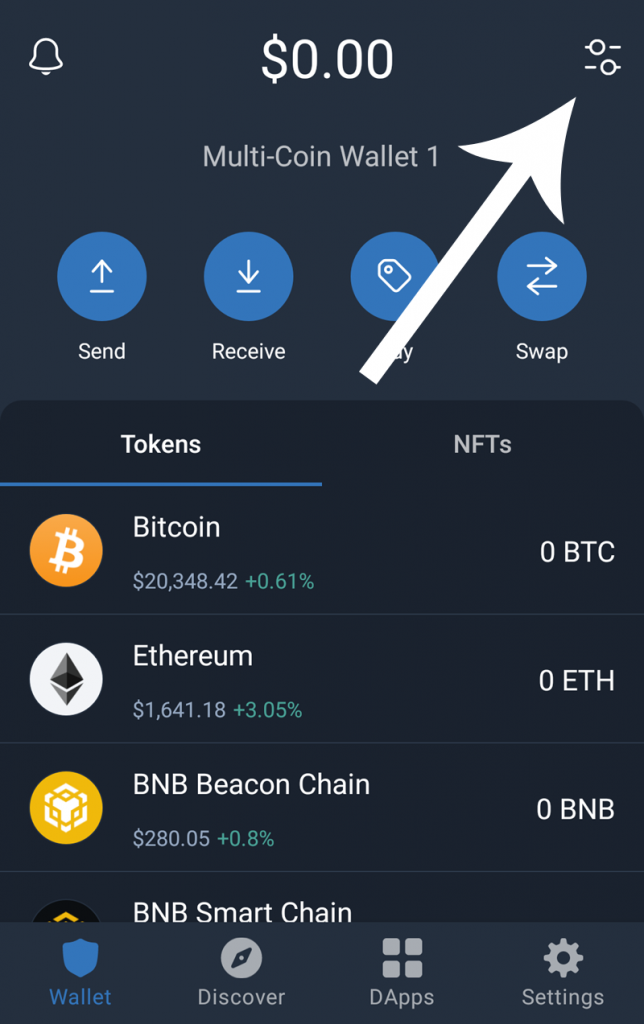
Step 1: Open your Trust Wallet and tap on “Manage” (if “Manage” is not available, click the “+” icon) in the top-right corner of the Wallet (Home) screen.
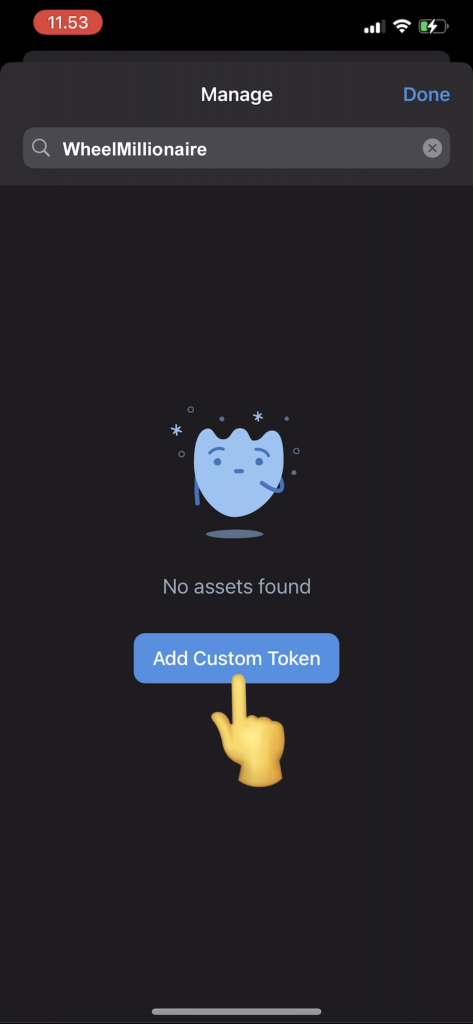
Step 2: Type “WheelMillionaire” in the search bar, if it does not appear, then tap the button “Add Custom Token”
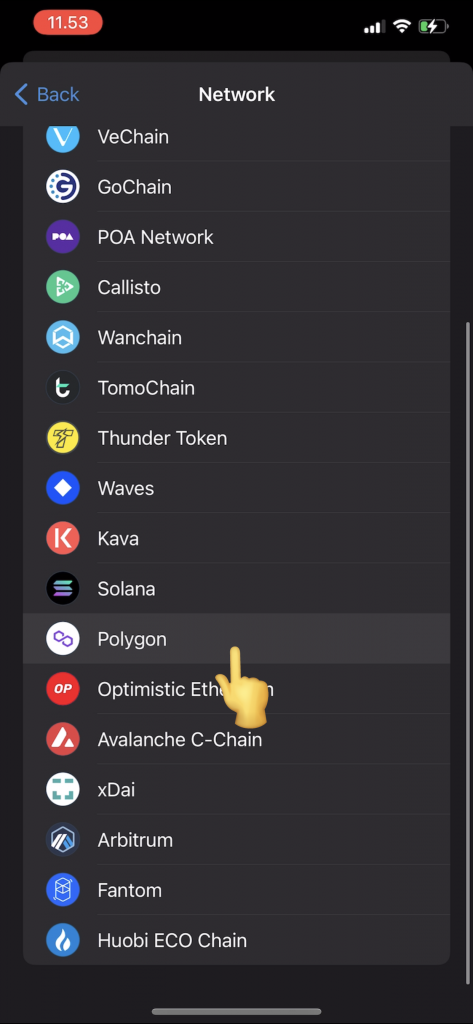
Step 3: Tap the Network button and CHANGE the Network from “Ethereum” to “Polygon“
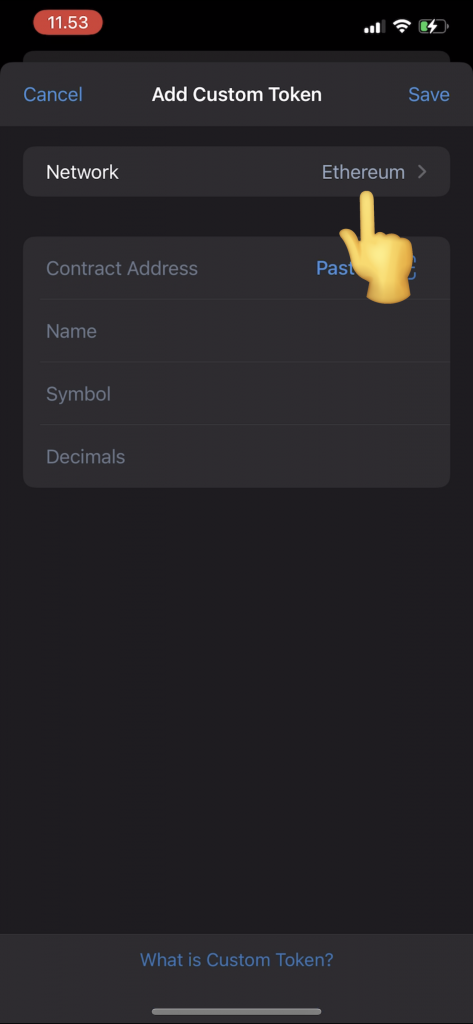
Step 4: Copy & Paste the Wheel token address (below) into “Contract Address”:
0x578aB4d5F491E400a9263c7625f9B9C8e11507Ba
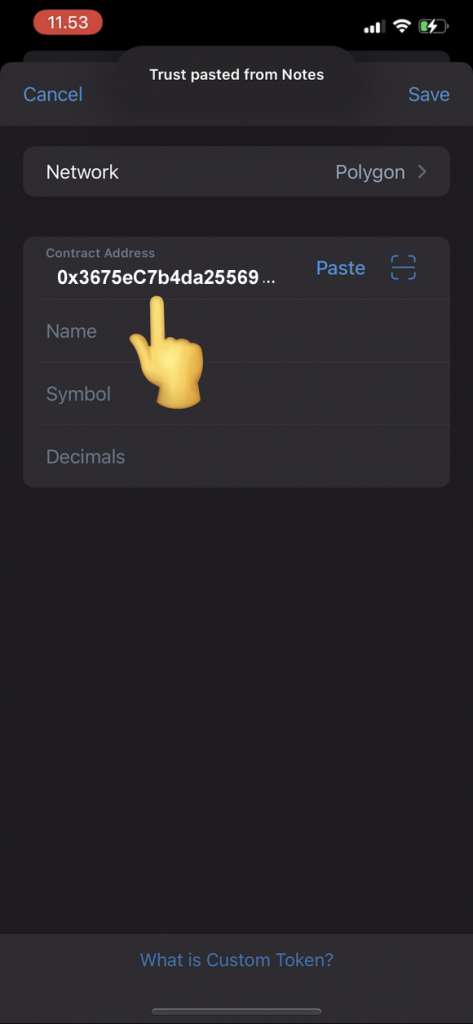
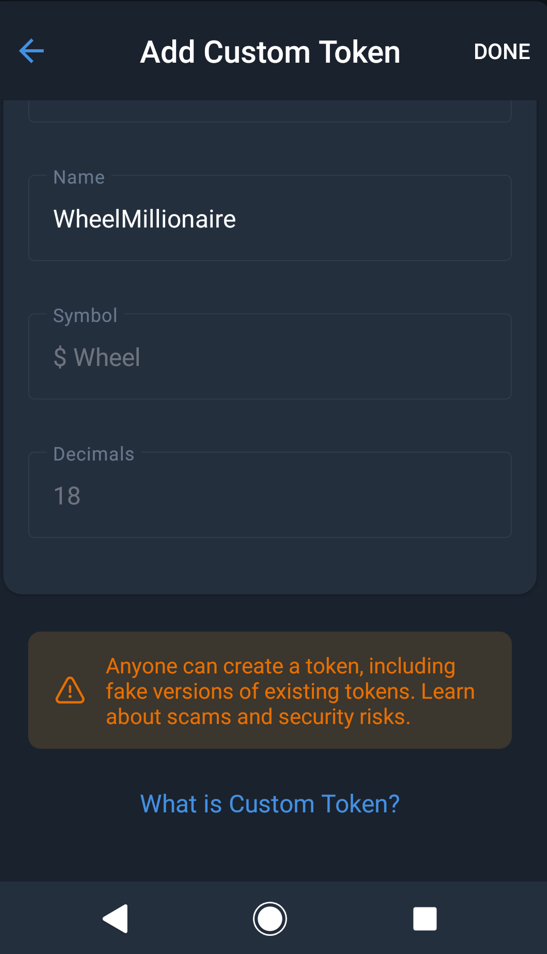
Step 5: Fill out the additional details if they are not auto filled, Name: WheelMillionaire, Symbol: $ Wheel, and Decimals: 18, and then press “Save” or “Done”
🎉You can now display and receive your Wheel tokens in your Trust Wallet!


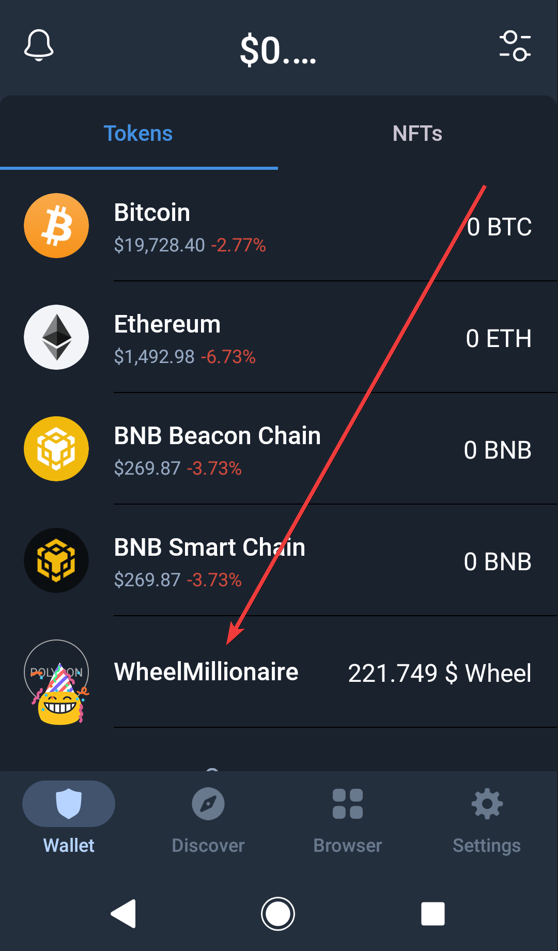
For general knowledge, your Polygon address is the exact same address as your Eth and BSC addresses on TrustWallet. It’s only different networks.
If you still have issues importing Wheel token, please watch this video:
3 responses to “How to add Wheel$ token on TrustWallet”
Thanks for the instructions I managed to add wheelmillionair on my trust wallet now I can see my balance
Thanks for the instructions I managed to add wheelmillionair on my trust wallet now I can see my balance
Thanks for the instructions I have received my payment to my trust wallet